
SCRIPTPILOT
npm script runner for VS Code — run, stop, and manage package.json scripts with one click.
Public beta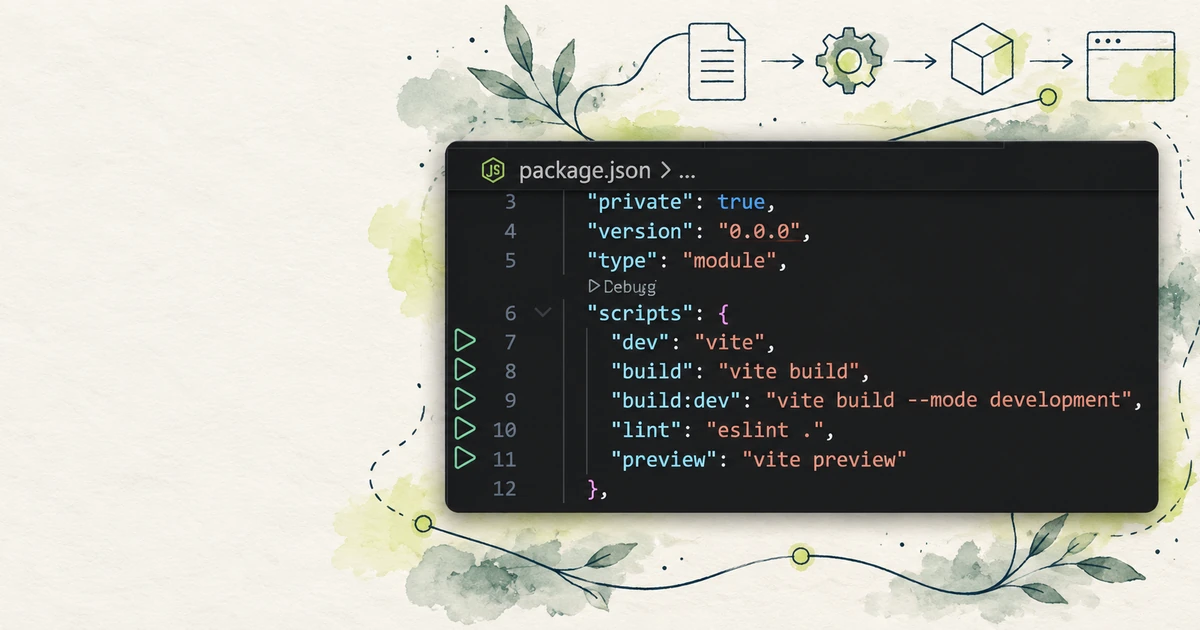
Every npm script in your workspace, one click away.
ScriptPilot adds a panel to VS Code's Activity Bar listing every script from every package.json in your workspace. Each script gets a run button; each running script gets stop and restart buttons.
Every script runs in its own dedicated terminal, so you can start, watch, and kill them independently — or stop everything at once. Free and open source under MIT.
Everything you need to run and manage package.json scripts, without leaving the editor.
One-click run, stop & restart
Every script runs in its own dedicated terminal — click play to run, stop to kill just that process tree, or restart to relaunch it.
Monorepo-aware script explorer
Lists every script from every package.json in your workspace. Multiple packages appear as expandable groups; node_modules is always excluded.
Package manager auto-detection
Detects npm, yarn, pnpm, or bun from the lockfile, walking up parent folders for monorepos — or set it explicitly in settings.
Terminal profile picker
Choose which terminal ScriptPilot uses — PowerShell, CMD, Git Bash, pwsh, or any custom profile from your settings.
Run with arguments
Right-click a script to append extra CLI arguments before running it.
npm run build -- --mode productionDouble-start protection
Running a script that's already running focuses its terminal and asks whether to restart, instead of silently starting a duplicate.
- 01
Install
Search “ScriptPilot” in the VS Code Extensions view and install it.
- 02
Open a project
Open any folder with a package.json, then click the ScriptPilot icon in the Activity Bar.
- 03
Run, stop, restart
Click a script to run it in its own terminal. Use
Stop Allin the panel title bar to stop everything.
A look inside ScriptPilot.
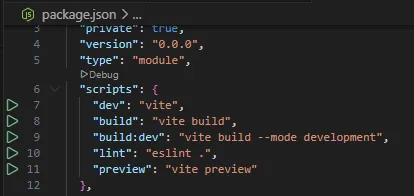 01
Script ExplorerEvery package.json script, grouped by package 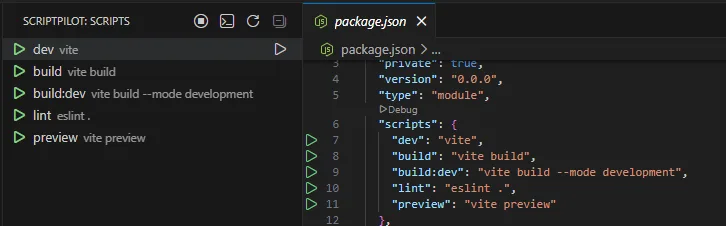 02
Dedicated TerminalsRun, stop, and restart each script independently